Configuring General Gross Error Analysis as a Validation Step to an Analysis
You can execute the General Gross Error Analysis as a pre-validation step when running either of these Sigmafine analyses:
- Sigmafine Mass Balance Analysis Rule
- Sigmafine Volume Balance Analysis Rule
You access the wizard for configuring the General Gross Error Analysis from a configuration window of one of the Analysis Rules. An example configuration using the Sigmafine Mass Balance Analysis Rule is presented below.
To configure the General Gross Error Analysis as a Validation step using either the PI System Explorer or the ProcessBook Modeler:
Follow the steps under either System Explorer or Modeler.
In the Sigmafine Analyses navigation pane, go to the Model for which you are creating the analysis.
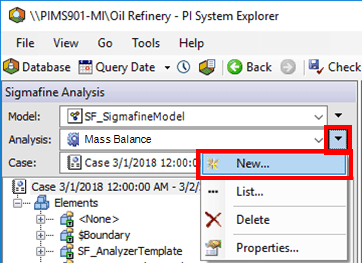
Click the Analysis
 menu button and select New from the menu, to open the Choose Analysis Template window.
On the SF Analysis Toolbar, click the New Analysis button to open the Choose Analysis Template window.

The following steps are common to both System Explorer and ProcessBook (Modeler) configurations.
In the Choose Analysis Template window, \<None> is selected by default; this value is fine for what you need to do.
Click OK.
The Analysis Properties window opens.
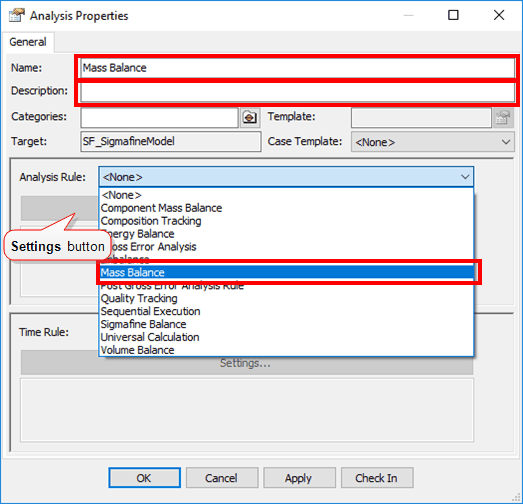
In the Name box, type a name for the analysis.
In the Description box, type a short description of the analysis.
Click on the Analysis Rule down-arrow and select Mass Balance.
Under Analysis Rule, click the Settings button.
The Mass Balance Configuration dialog box appears.
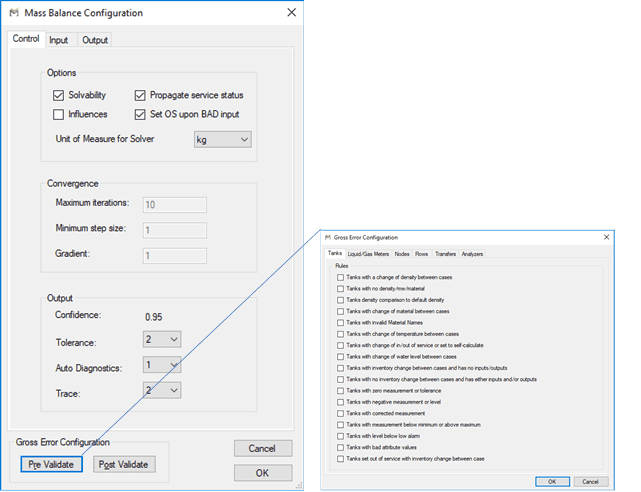
Configure the mass balance analysis as described in Configuring - Mass Balance Analysis Rule.
Click the Pre Validate button to configure the general gross analysis in the Gross Error Configuration window.
Based on the objects to validate, select the rule to configure (in our example, we selected "Tanks with a change of density" between cases.).
A second window opens in which you select Attribute names and rule settings.

The properties and options for each rule are described later in Tanks with a Change of Density Between Cases.
Configure the rule and click OK.
After a rule has been configured, the text "CONFIGURED" appears after the entry as shown in the following figure.
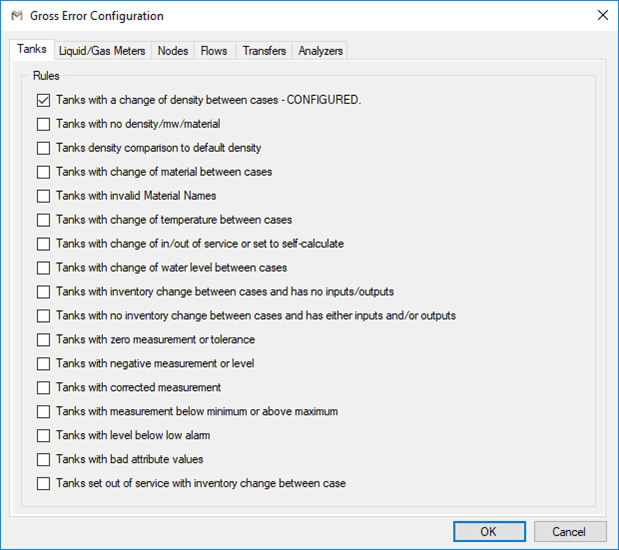
You can configure another rule by checking the checkbox by the rule name. Otherwise, click OK.
The Analysis is now configured.
 System Explorer
After the steps are configured, they are executed when the analysis rule that calls them is run. The General Gross Error Analysis is performed on the inputs of the analysis during the validation step in the Case run (the step before the reconciliation is performed). This allows you to identify non-statistical errors before the statistical reconciliation is run.